Timesheets
Once a month you record how many hours you worked on each project. Loom calls each piece of project work a work package. A timesheet is one month, with one line per work package and the total hours you spent on it that month. You do not fill in hours day by day.
Your approver checks the timesheet. Once approved, it is the record your organisation reports to the European Commission, so take care that the hours are right.
Recording a month
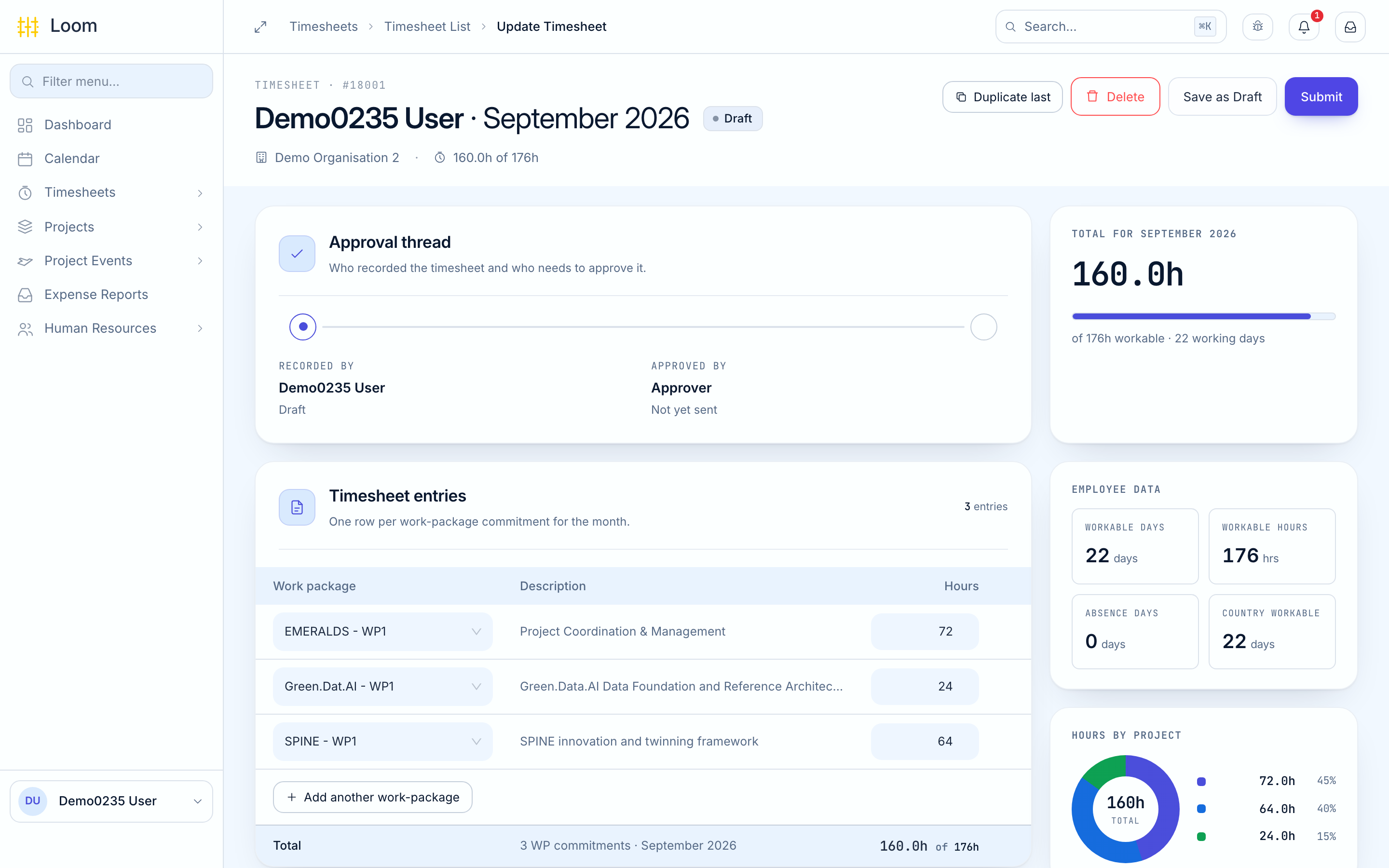
- In the menu, click Timesheets › Timesheet List, then New Timesheet. Or click Log timesheet on your home page.
- Check the Month. Loom picks the previous month during the first six days of a month, and the current month after that. You cannot pick a future month.
- Check the Employee. It is filled in for you. If you work for more than one organisation, pick the one this timesheet is for.
- Click Add your first work-package and pick a work package from the list. The list shows only the work packages that are running in that month.
- Type the Hours you spent on it that month. You can use half hours, such as
12.5. - Click Add another work-package for each further work package.
- Check the total at the bottom: Xh of Yh shows your hours against the hours you could work that month.
- Click Save as Draft to finish later, or Submit to send it to your approver.
Same work as last month?
Click Duplicate last to copy the lines from your previous timesheet, then change the hours.
You can attach files, such as a signed paper timesheet, with Attach file.
The panels on the right
- Total for the month: how many hours you can work that month, and how many working days.
- Employee data: your working days, working hours, days of absence and the public holidays in your country. Your leave and the public holidays are already taken off the hours you can work.
- Approval thread: who recorded the timesheet and whether it has been approved.
Messages you may see
| Message | What to do |
|---|---|
| A timesheet already exists for this month | You already started this month. Click Edit timesheet to open it |
| These entries don't fit the selected month | Some work packages were not running in the month you picked. Click Keep entries to go back to your previous month, or remove them |
| Total hours exceed employee workable hours | A warning only. Check your hours before you submit |
| You may not report more hours than you have worked! | Shown when you submit. Your total is higher than the hours you could work that month, after leave and public holidays. Lower the hours |
| A line about a meeting, such as expected 16.00h from the "Kick off" meeting | You were at a project meeting that month. Check that its hours are in the timesheet |
What happens next
| Status | What it means | What you can do |
|---|---|---|
| Draft | Saved, not sent yet | Change it, Submit it or Delete it |
| Submitted | Waiting for your approver | Nothing. You cannot take it back |
| Approved | Accepted | Nothing. You can Print it |
| Rejected | Your approver sent it back | Correct it, then click Update and Resubmit |
Loom does not tell you when a timesheet is approved or rejected
Check the Status column in Timesheet List after you submit. The tabs above the list show only Submitted, Approved or Rejected timesheets.
Printing approved timesheets
In Timesheet List, click Print Timesheets, choose the period and click Download Report. Loom creates a PDF of your approved timesheets only.
On your phone
- Tap Records, then Hours. The card at the top is the current month.
- Tap a month. For a month that is not in the list, open the Calendar tab, tap a day in that month and tap the hours card.
- Tap Add under Work package commitments, pick a work package and type the hours.
- Tap Save draft, or Submit for approval.
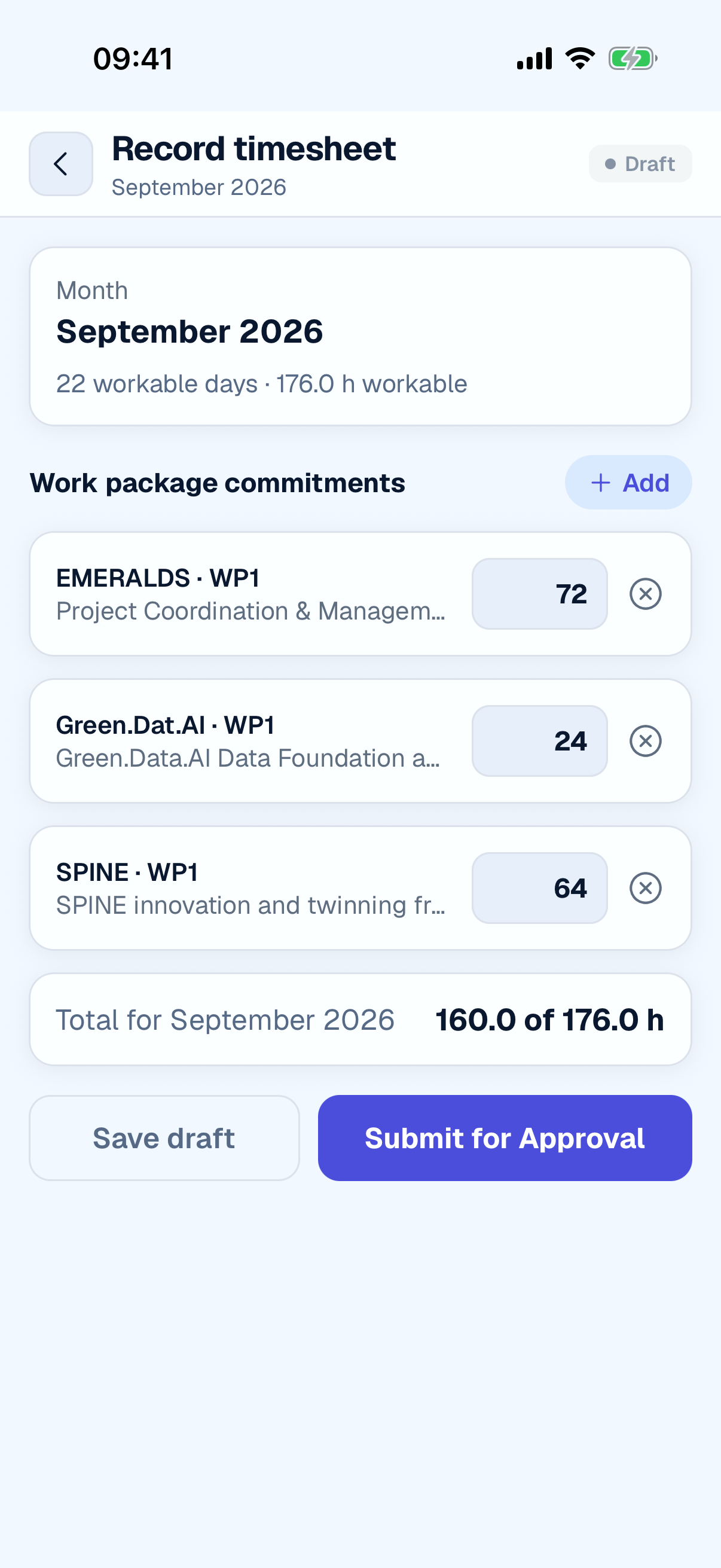
On the phone you can change a timesheet only while it is a Draft. To correct a rejected timesheet, use the browser.
The card at the top shows your hours against the hours you can work that month, worked out from your own working day. Your leave and public holidays are taken into account in the browser.