Getting started
Your first sign in
You do not create your own account. Your administrator creates it and Loom sends you an email.
- Look in your inbox for an email called Welcome to Loom! from notifications@loomapp.eu. It shows your username and a link. If you cannot find it, check your spam folder.
- Click the link. The page Set your password opens.
- Type a password in New password, and the same password again in Confirm new password.
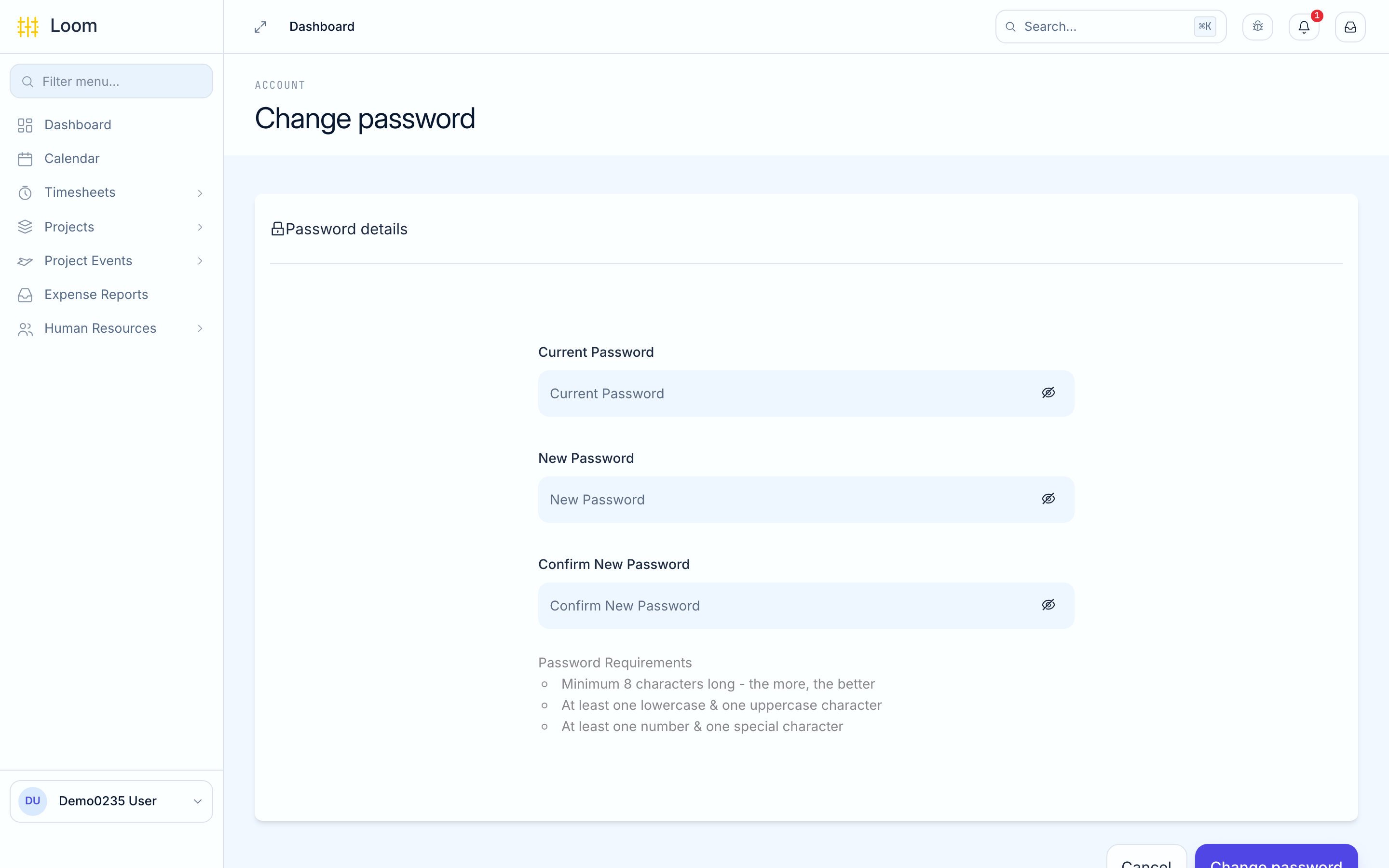
Your password needs:
- at least 8 characters
- at least one lowercase and one uppercase letter
- at least one number and one special character, such as
!or@
- Click Set password. Loom shows Your password is set.
- Sign in with your username and the password you just chose.
The link only works for 7 days
If it has expired, the page says This link cannot be used. Click Request a new link, or ask your administrator to send you a new one.
Signing in
- Open Loom in your browser. Your administrator gives you the address.
- Type your Username and Password. Click the eye icon if you want to see what you typed.
- Click Sign in.
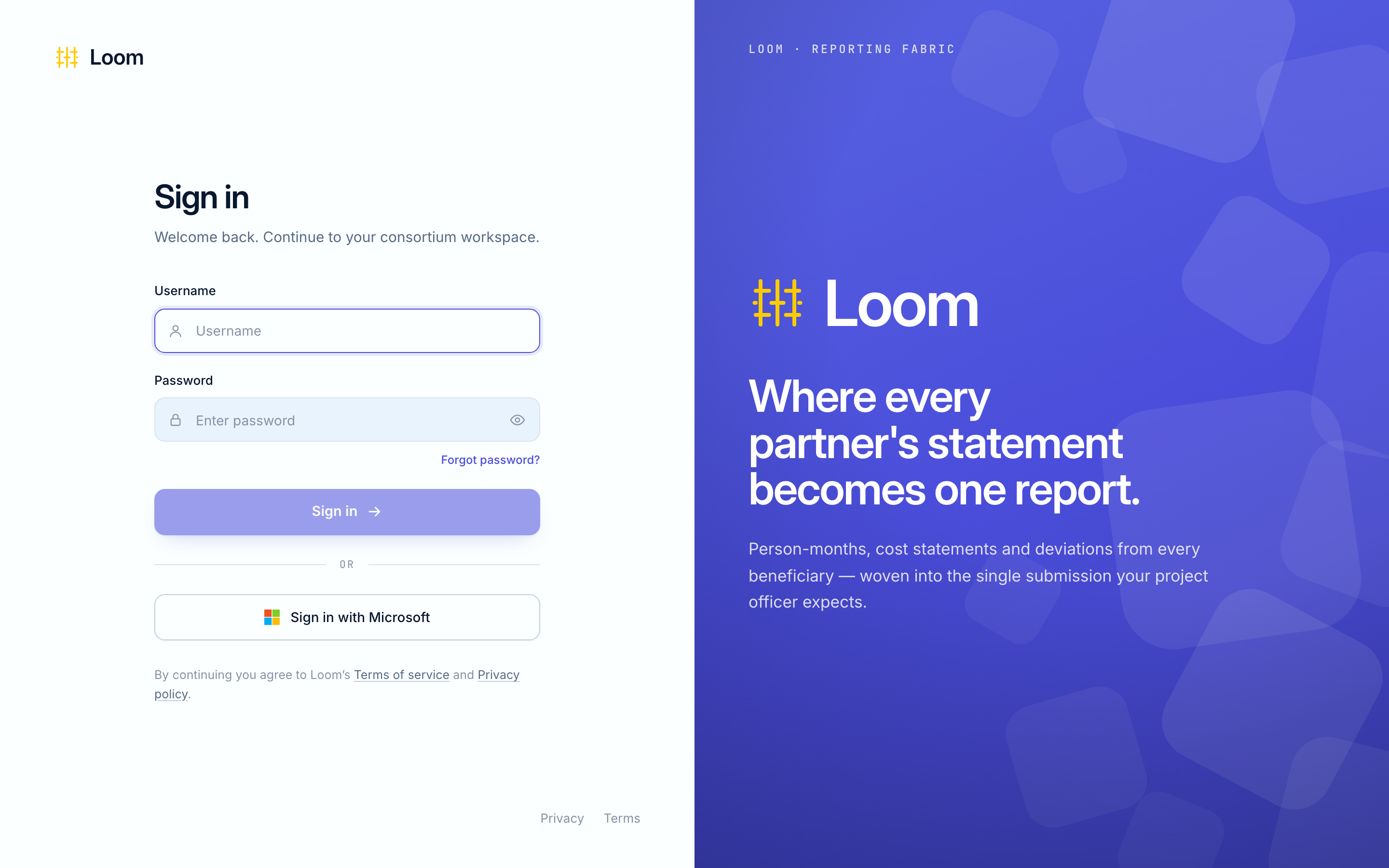
If your organisation uses Microsoft 365, you can click Sign in with Microsoft instead and use your work account. You will not need a separate Loom password.
If you see Invalid username or password, check both and try again. Passwords are case sensitive, so check that Caps Lock is off.
If you forgot your password
- On the sign in page, click Forgot password? under the Password field. The page Forgot your password opens.
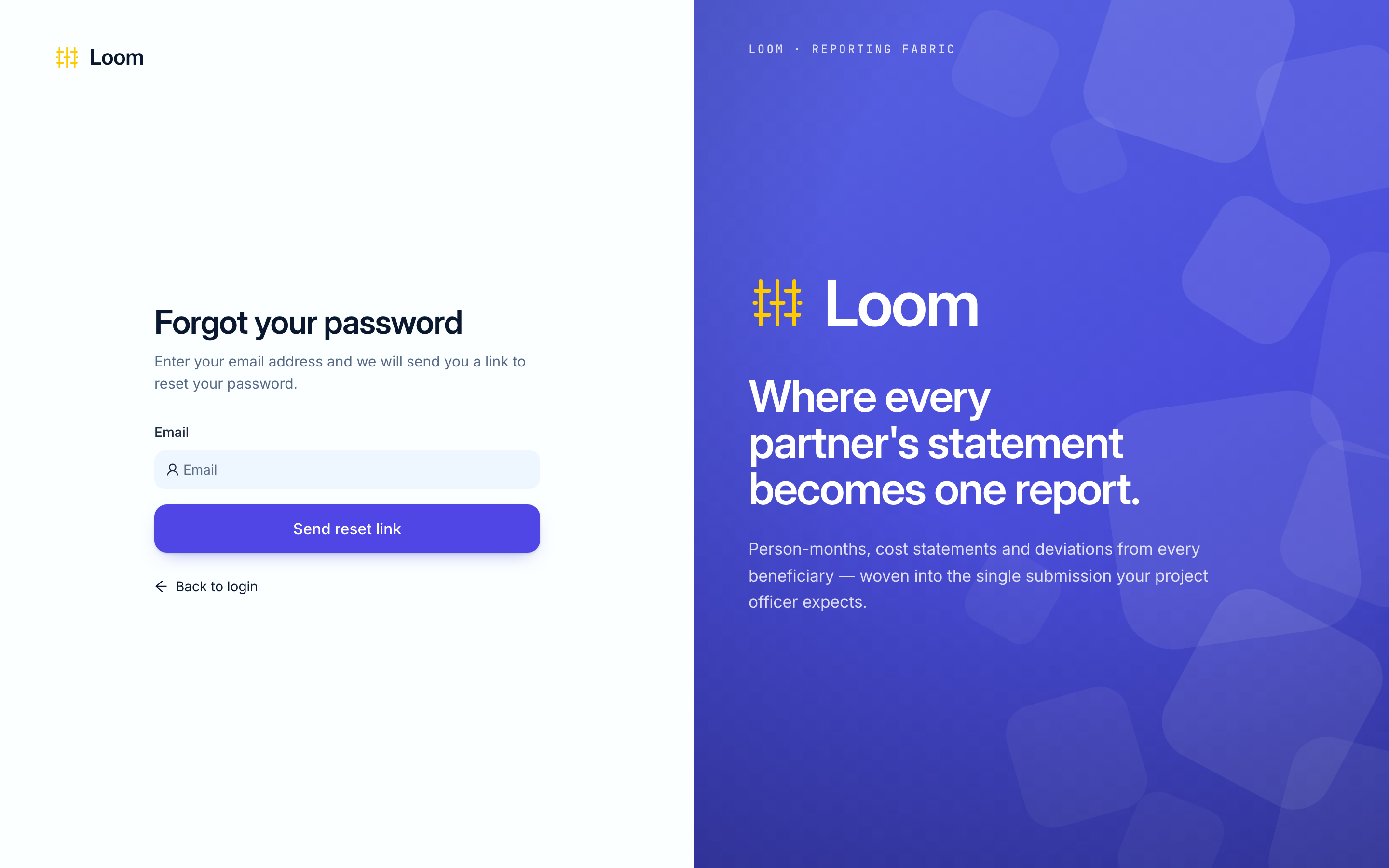
- Type the email address your account uses and click Send reset link.
- Loom shows Check your email. The email is called Reset your password.
- Click the link in the email and choose a new password, as in your first sign in.
Use the reset link within one hour
A reset link works once and expires after 60 minutes. If it has expired, ask for a new one.
When you set a new password, Loom signs you out everywhere, on every computer and phone. Sign in again with the new password.
Changing your password
- Click your name at the bottom left of the screen, then Change password.
- Type your Current Password, then your New Password twice.
- Click Change Password. Loom asks you to sign in again.
If you change your mind, click Cancel.
Signing out
Click your name at the bottom left of the screen, then Logout.
This signs you out of this browser only. If you use Loom on another computer or on your phone, you stay signed in there.