Expenses
An expense report is how you claim back money you spent on a trip: tickets, hotel, taxis, meals. Each report belongs to one approved trip. Keep your receipts: every expense needs one.
Creating an expense report
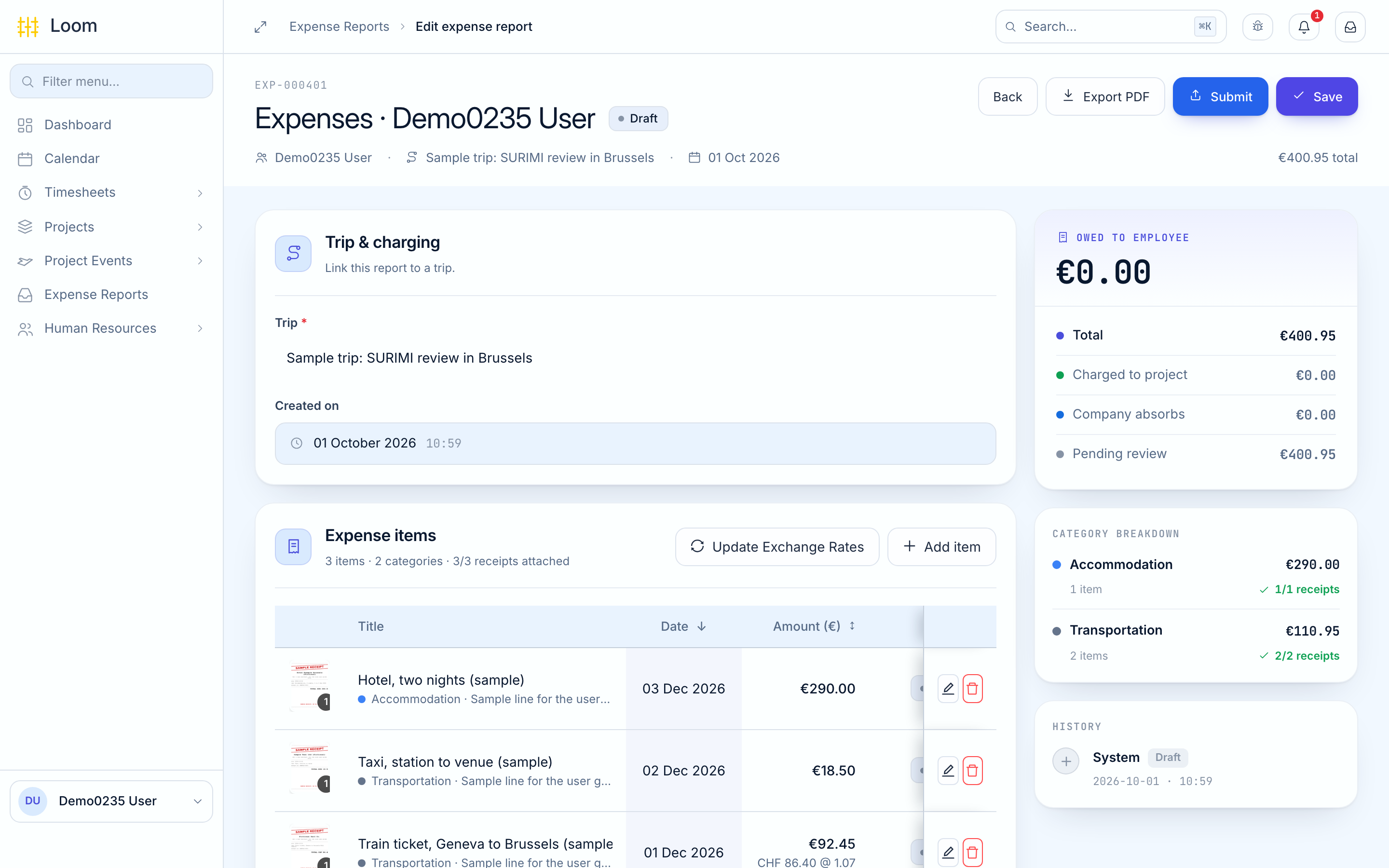
- In the menu, click Expense Reports, then New Expense Report.
- Under Trip, pick the trip. Only your approved trips that do not have a report yet are listed.
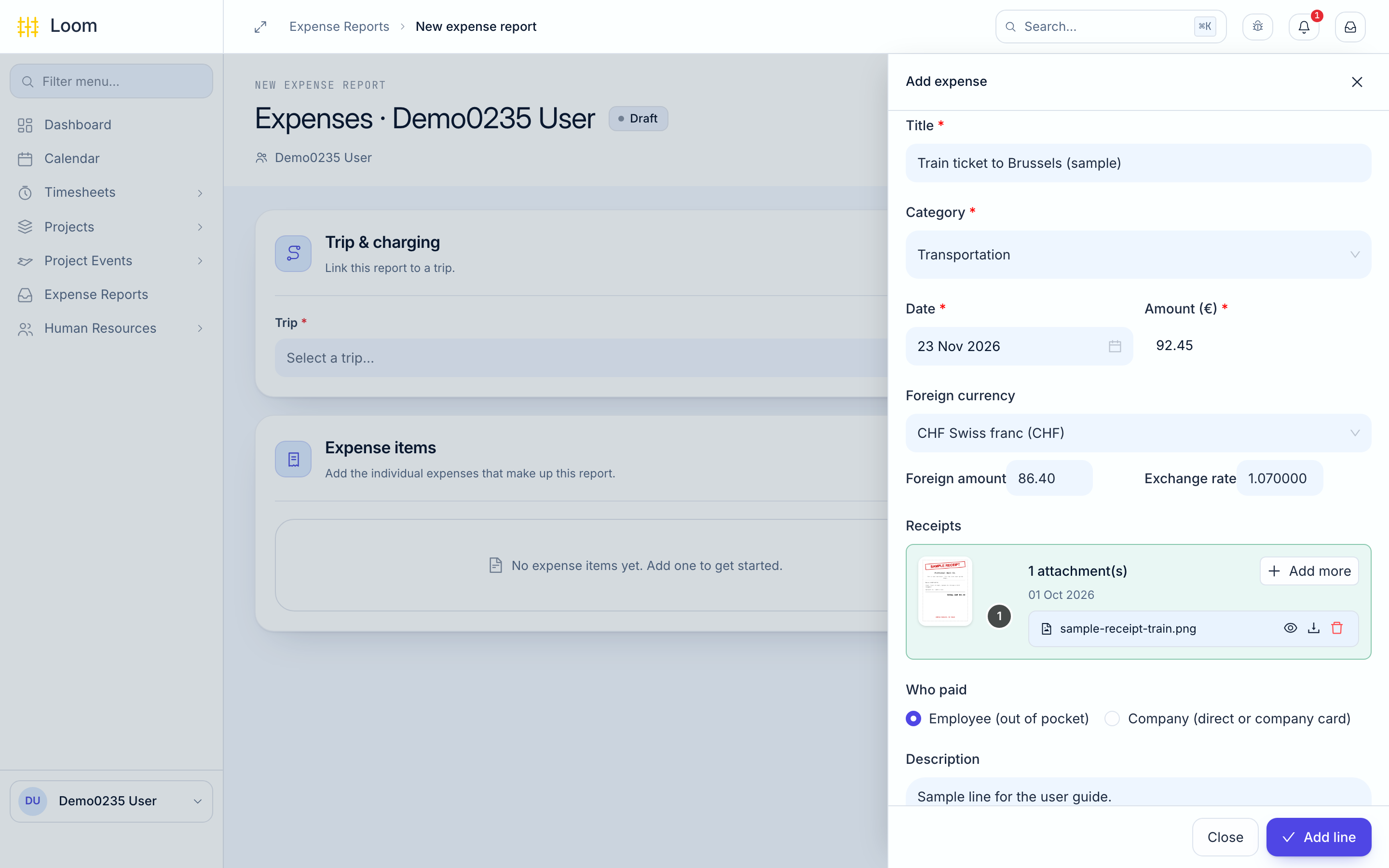
- Click Add item. A panel opens on the right.
- Fill in:
- Title, such as "Train to Brussels"
- Category
- Date you paid
- Amount (€)
- If you paid in another currency, fill in the foreign amount and the exchange rate. Loom works out the amount in euro.
- Under Receipts, click Upload receipts and pick a photo or PDF of the receipt. Each file can be up to 10 MB.
- Choose who paid: Employee (out of pocket) if you paid yourself, or Company if you used a company card.
- Click Add line. Repeat from step 3 for each expense.
- Click Save.
- Click Submit, then confirm.
Every line needs a receipt
Loom will not submit the report until every line has a receipt, a title, a category, a date and an amount.
Update Exchange Rates fills in the official European Central Bank rate for the date of each foreign currency expense.
What happens next
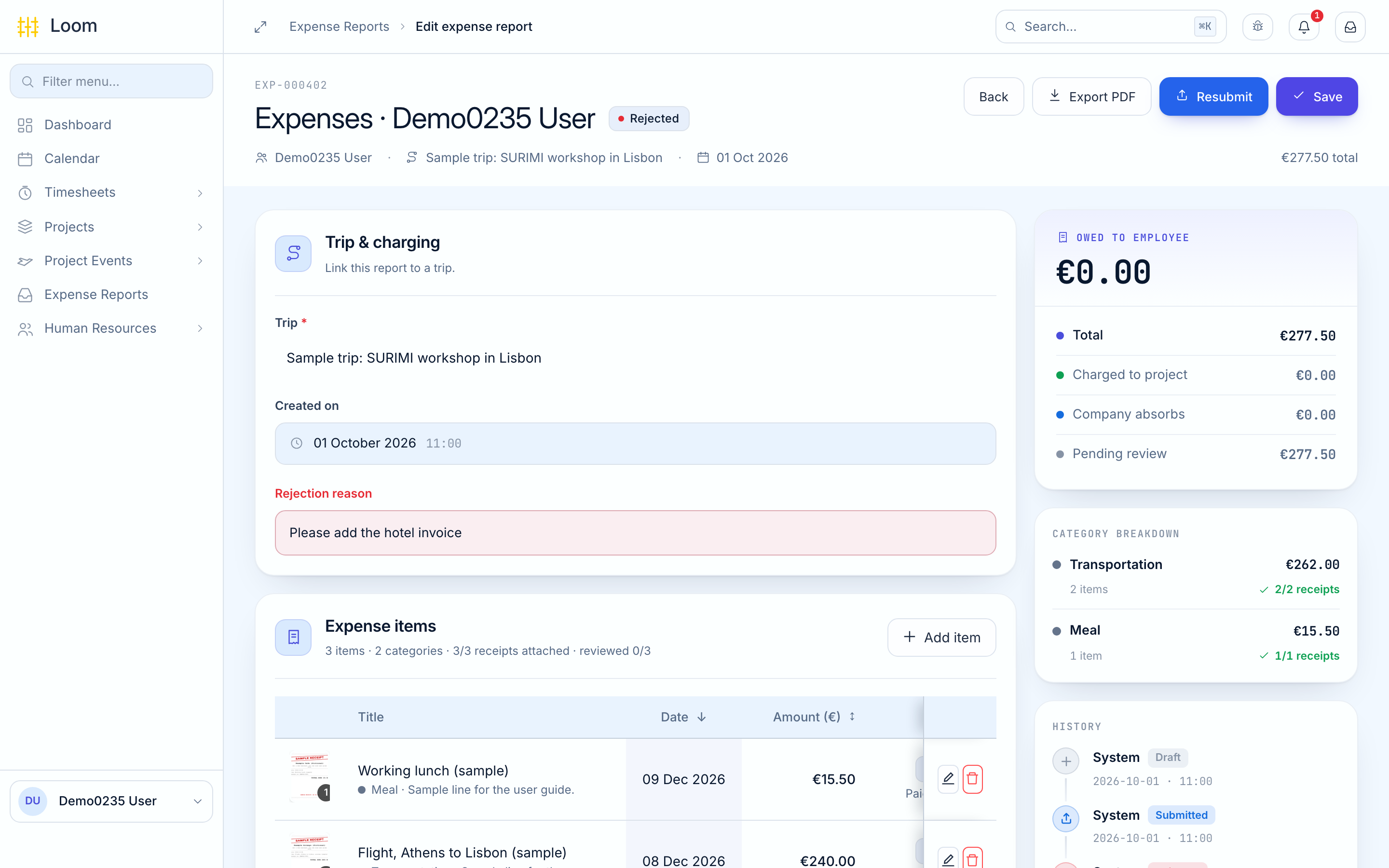
You get an email and a notification when the report is approved, rejected or paid. If it is rejected, open the report to read why: the reason is shown in a red Rejection reason box at the top, not in the notification.
| Status | What it means | What you can do |
|---|---|---|
| Draft | Saved, not sent | Change it and Submit |
| Submitted | Waiting for approval | Nothing |
| Approved | Accepted, waiting for payment | Nothing |
| Rejected | Sent back. The Rejection reason says why | Correct it and click Resubmit |
| Reimbursed | The money has been paid to you | Nothing |
| Cancelled | Not going ahead | Nothing |
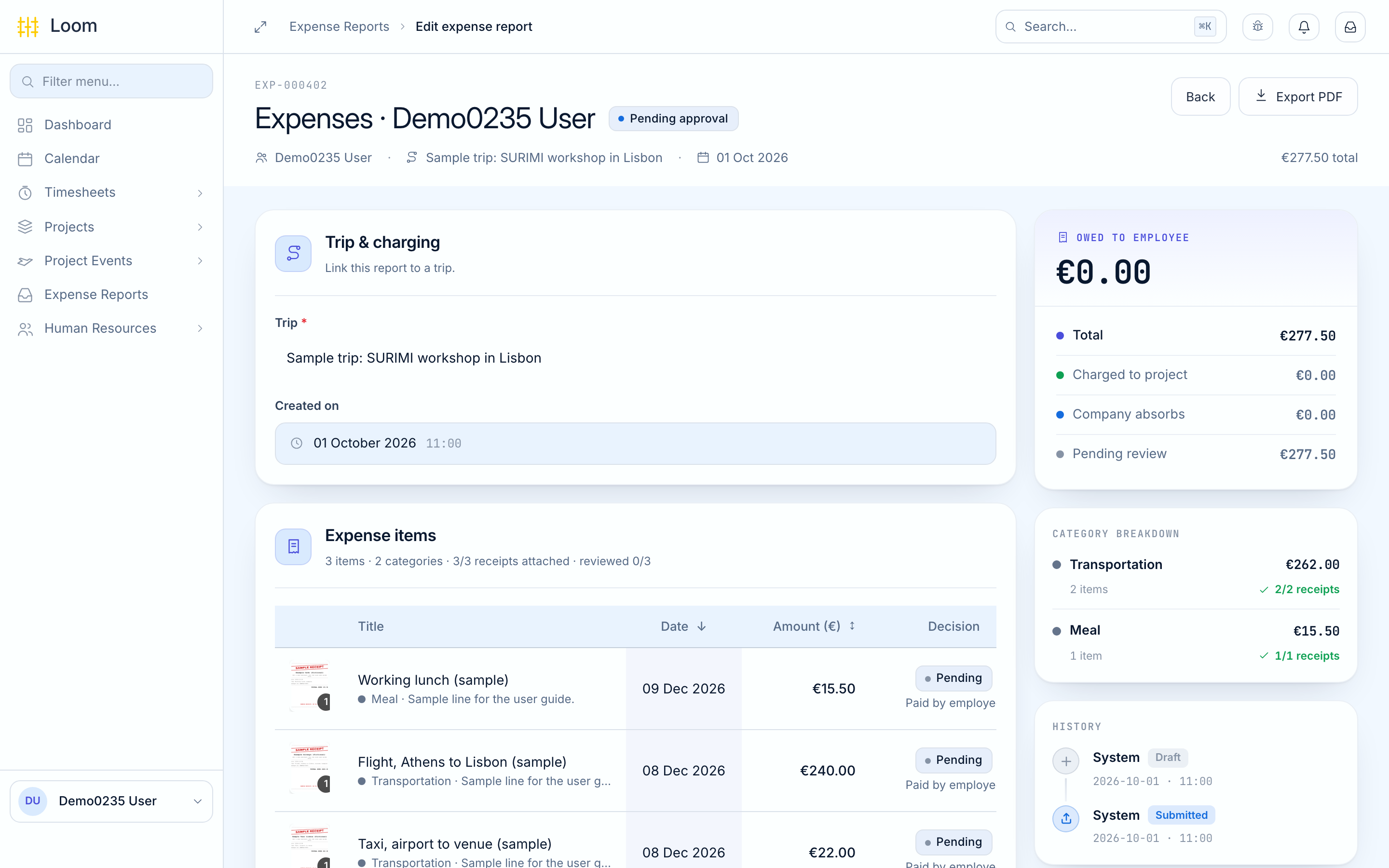
Owed to Employee shows how much will be paid back to you. Export PDF gives you a copy of the report.
On your phone
The phone is the easiest way to add expenses while you travel: take a photo of the receipt and Loom reads it for you.
- On the Home tab, tap Scan or Expense.
- Tap Scan a receipt, then Take Photo, Choose from Photos or Choose Document.
- Loom reads the receipt and fills in the title, amount, date and description. Check them and correct anything it got wrong.
- Pick a Category and the Trip.
- Tap Save expense.
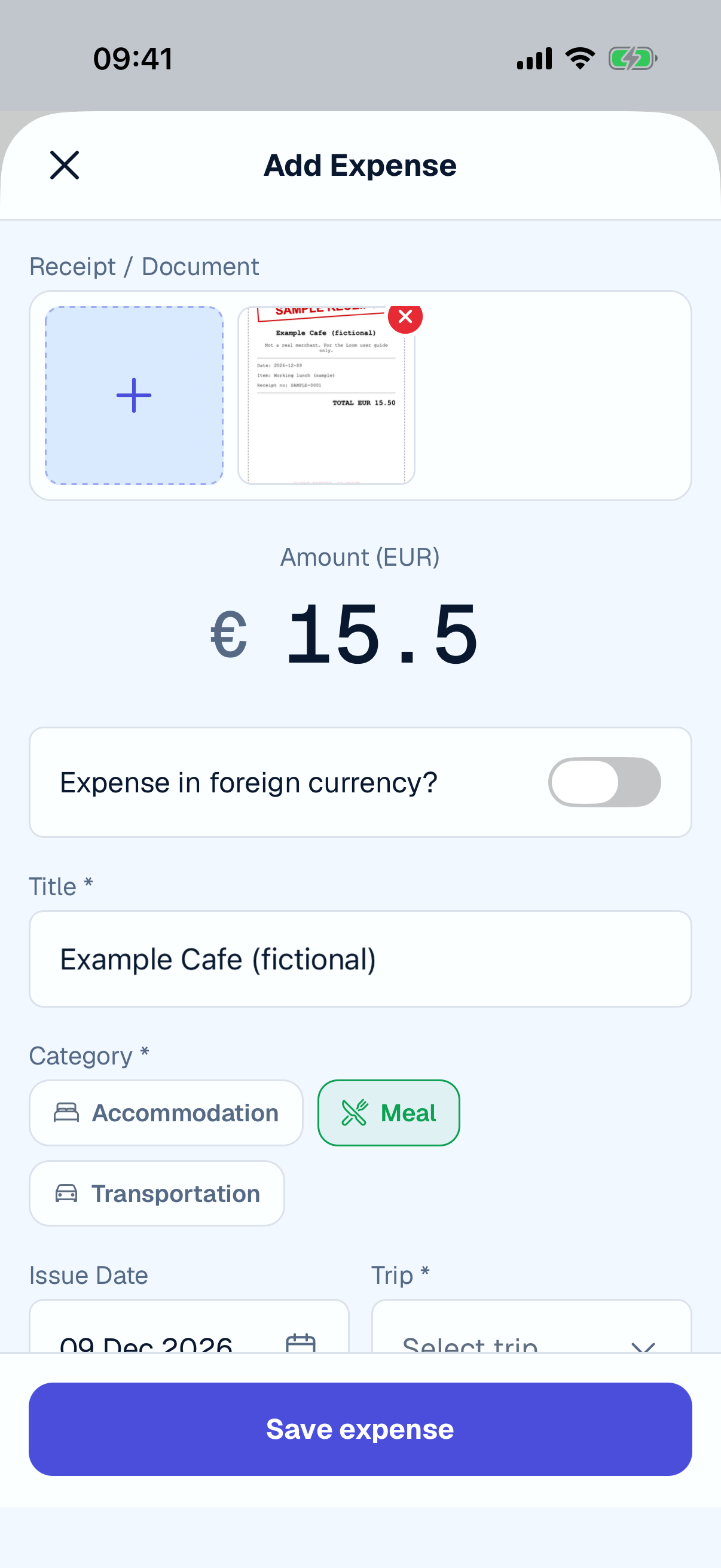
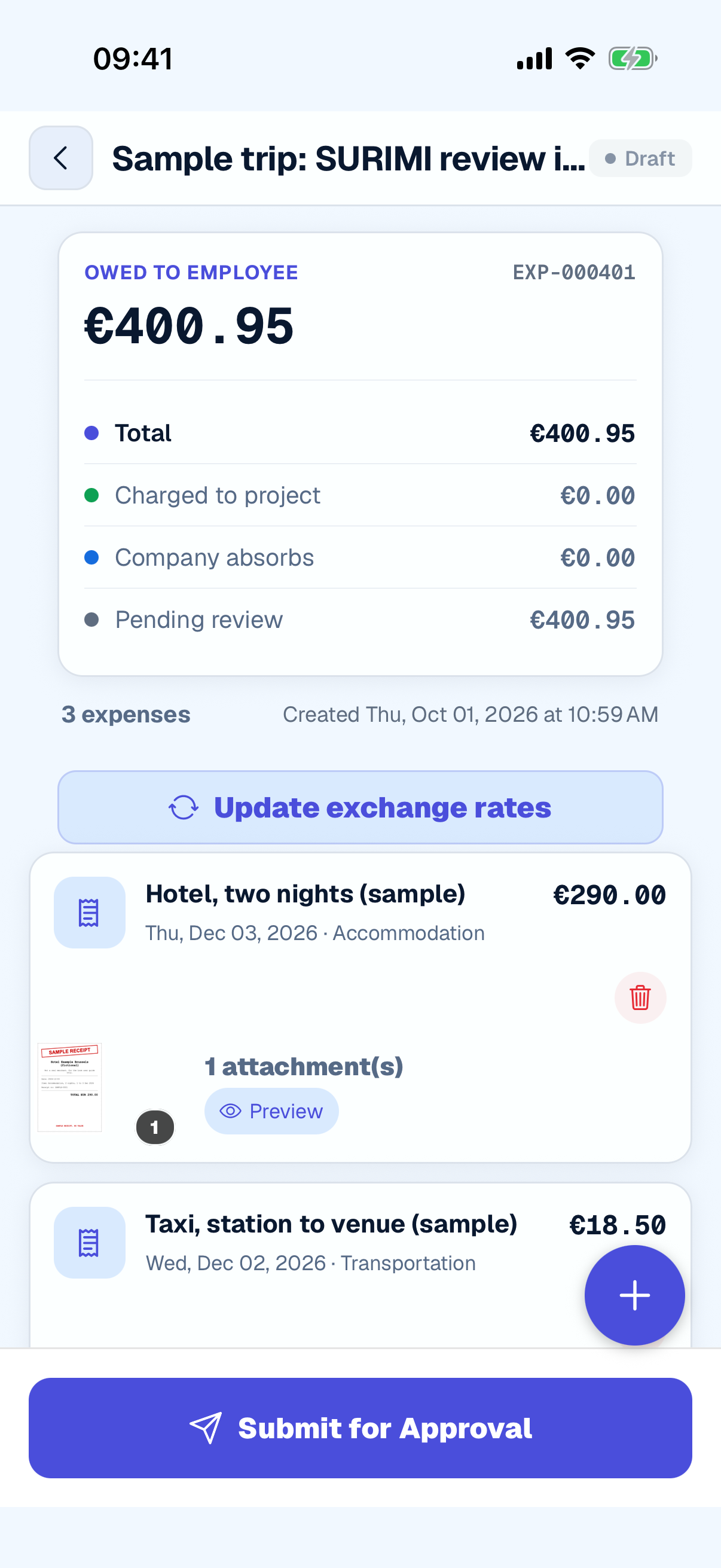
Loom adds the expense to your draft report for that trip, or starts a new one. To send it:
- Tap Records, then Expenses, and tap the report.
- Check that every line has a receipt, then tap Submit for Approval.
Can't see your reports?
The list opens showing Draft reports only. Tap All to see the rest.
To add several receipts at once, tap + in Records › Expenses, then Add multiple.
On the phone you cannot change a report after it has been submitted. To correct a rejected report, use the browser.