Leave
Asking for leave
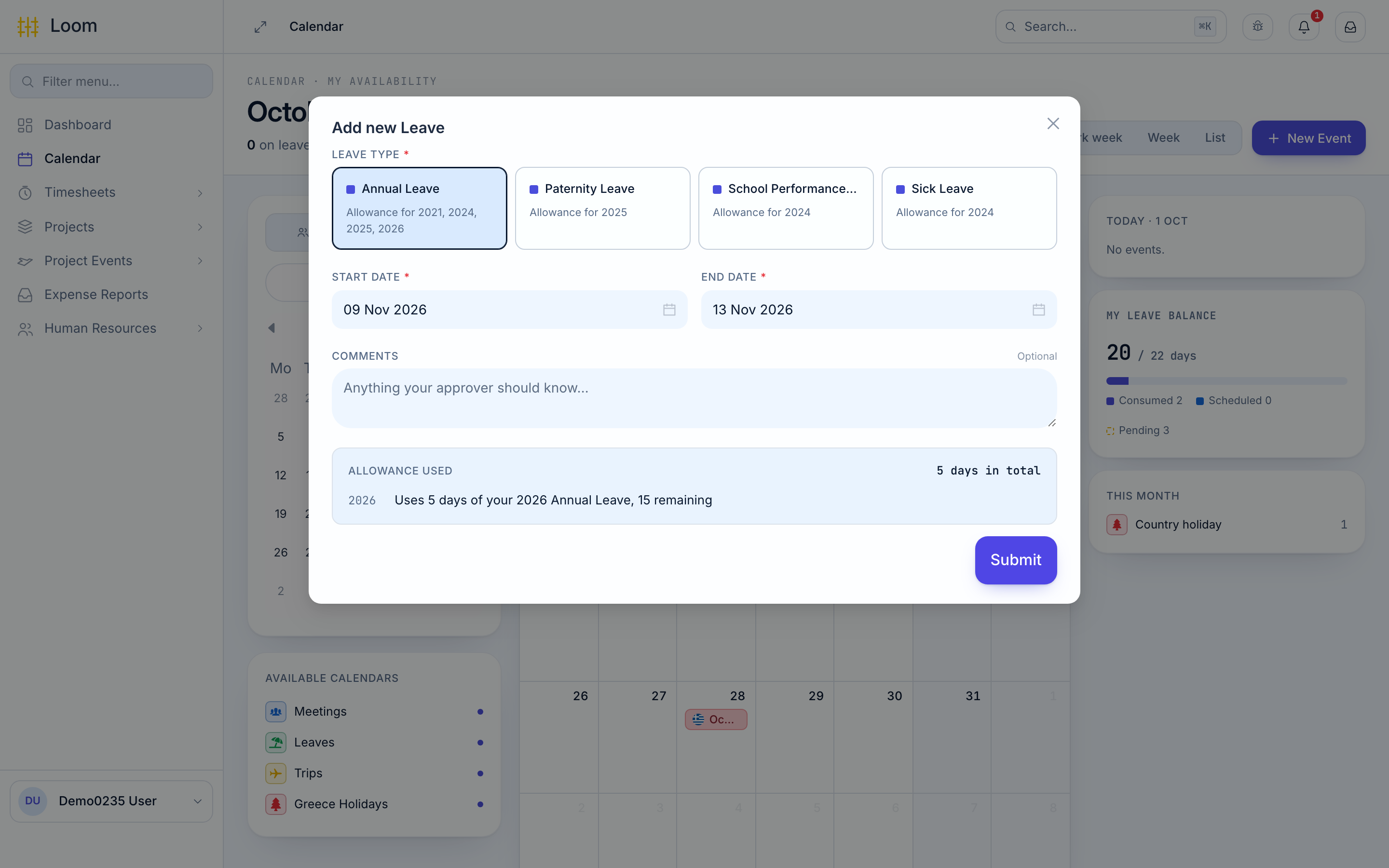
- In the menu, click Calendar, then New Event › Leave request. Or go to Human Resources › Leaves › My Leaves and click New Leave.
- Under Leave type, click the type you want, such as Annual Leave. Each type shows the years you have an allowance for, or Unlimited.
- If you work for more than one organisation, choose the Organisation this leave is for.
- Pick the Start date and End date. You cannot pick a day in the past.
- For a single day, you can choose a Day portion: Full day, the morning (First half · AM) or the afternoon (Second half · PM). Not every leave type allows half days.
- If your approver should know something, write it in Comments.
- Check Allowance used. It tells you how many days the request takes and how many you will have left, for example Uses 3 days of your 2026 Annual Leave, 12 remaining. Weekends and public holidays are not counted.
- Click Submit. Loom shows Leave created successfully.
A quicker way
In the Calendar, drag across the days you want off. The leave form opens with those dates filled in.
Leave that crosses New Year is split: the days in each year come off that year's allowance.
Messages you may see
| Message | What to do |
|---|---|
| There is no leave allowance to book against | HR has not set up your leave yet. Ask them |
| No Annual Leave allowance for 2027 (or another type and year) | HR has not added your allowance for that year. Ask them before you book |
| Your requested days exceed your quota. Please contact HR! | You do not have enough days left |
| There is an existing pending Leave Request that overlaps with this one! | You already asked for some of these days. Withdraw the old request first |
Who approves it
Your request goes to your approver. If they have not decided after 2 working days, Loom reminds them. After 4 working days, or if they are on leave, it moves on to the next approver, and finally to HR. Loom tells you each time your request moves on.
When it is approved or rejected, you get a notification and an email.
Some leave types need no approval and are approved straight away.
Your requests and their status
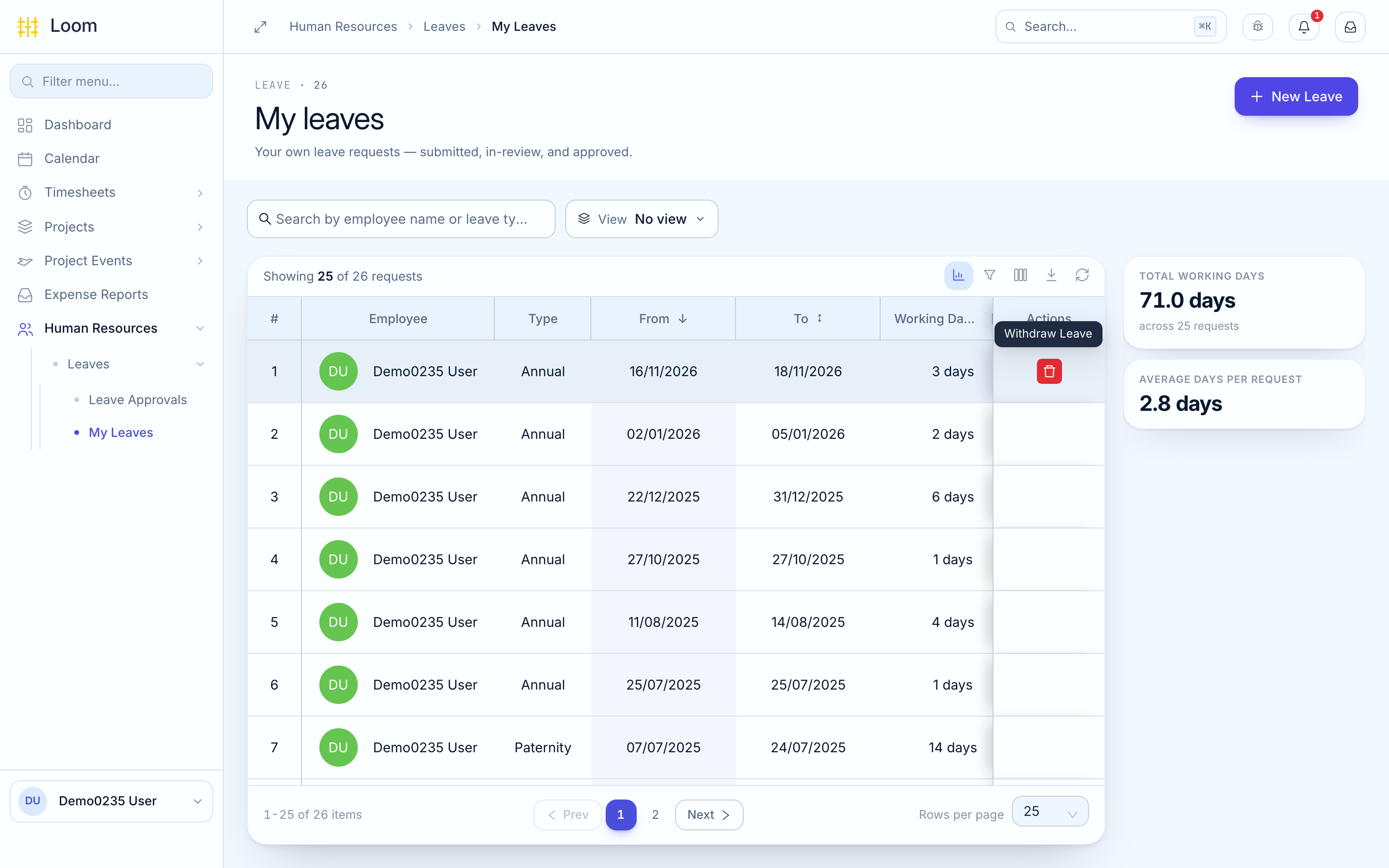
Human Resources › Leaves › My Leaves lists all your requests. To see the details of a request, with your balance and its approval history, click it in the Calendar.
| Status | What it means |
|---|---|
| Submitted | Waiting for a decision |
| Approved | Granted |
| Rejected | Not granted |
| Withdrawn | You cancelled it |
You cannot change a request after you submit it. To change the dates, withdraw it and ask again.
Withdrawing a request
In My Leaves, click the bin icon at the end of the request's row (Withdraw Leave), then Withdraw to confirm.
- A request that is still waiting can be withdrawn at any time.
- An approved request can be withdrawn only before its first day. After that, ask HR.
How many days you have left
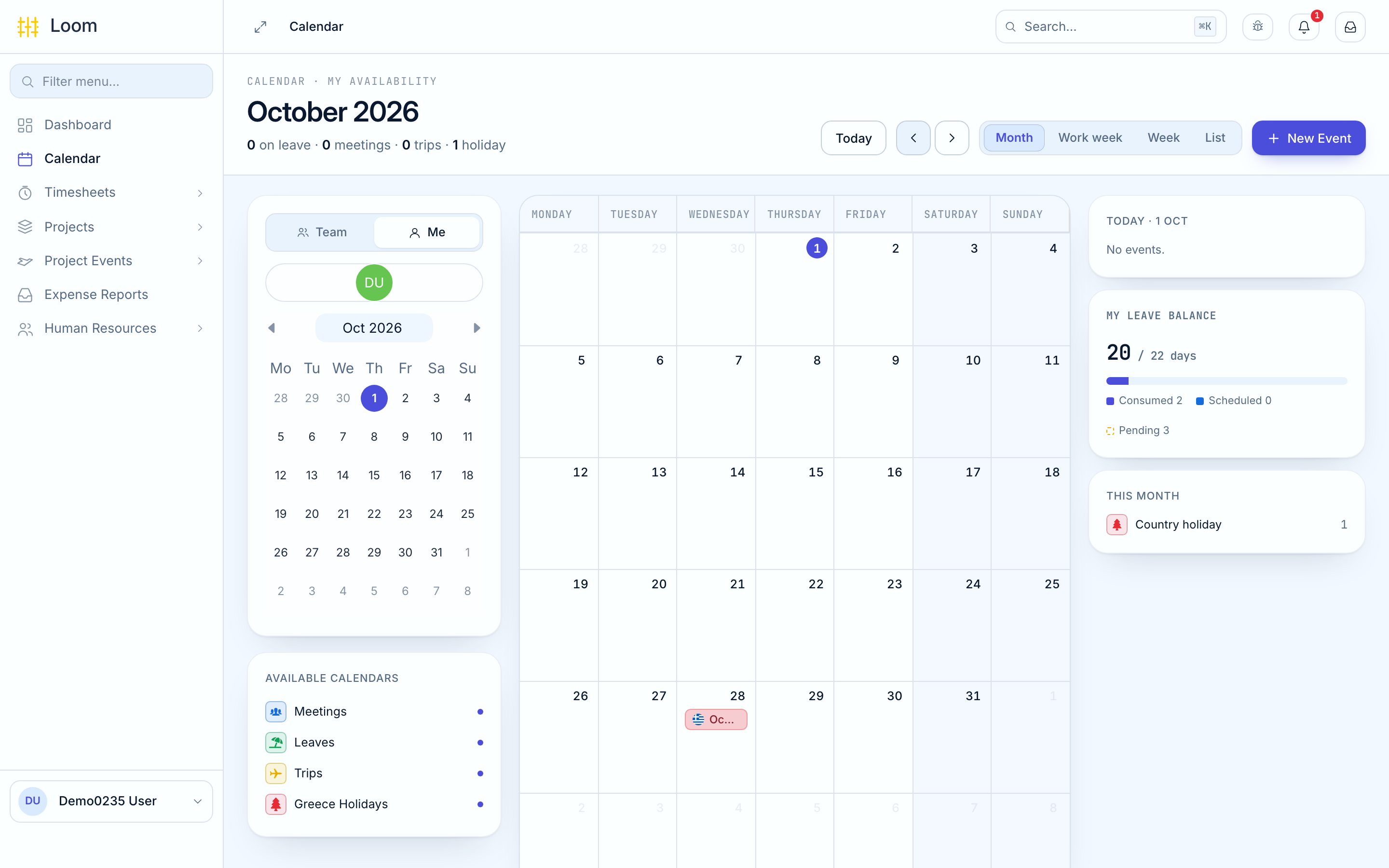
- The Leave balance tile on your home page and the My leave balance panel on the right of the Calendar show your annual leave: used, booked and remaining.
- The details of any request show the balance of that leave type for each year.
Public holidays
Public holidays in your country show in red in the Calendar, marked Country holiday. You do not need to ask for leave on those days.
Calendar looks empty?
Under Available calendars on the left, switch on Meetings, Leaves, Trips and your country's holidays. Choose Me at the top left to see only your own events.
On your phone
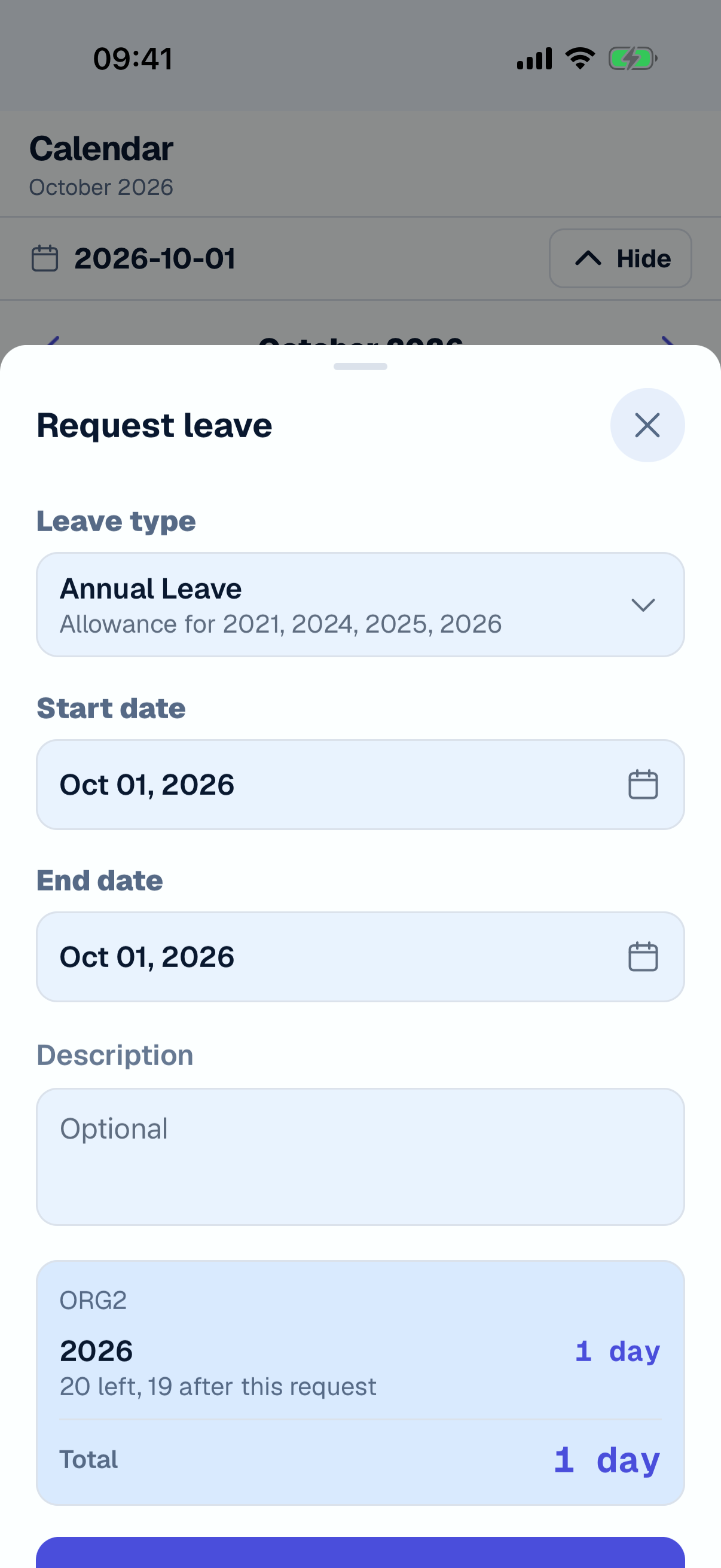
- Open the Calendar tab and tap +.
- Pick a Leave type, the Start date and End date, and a Day portion if you need one.
- Check the days and the balance Loom shows below, then tap Submit leave.
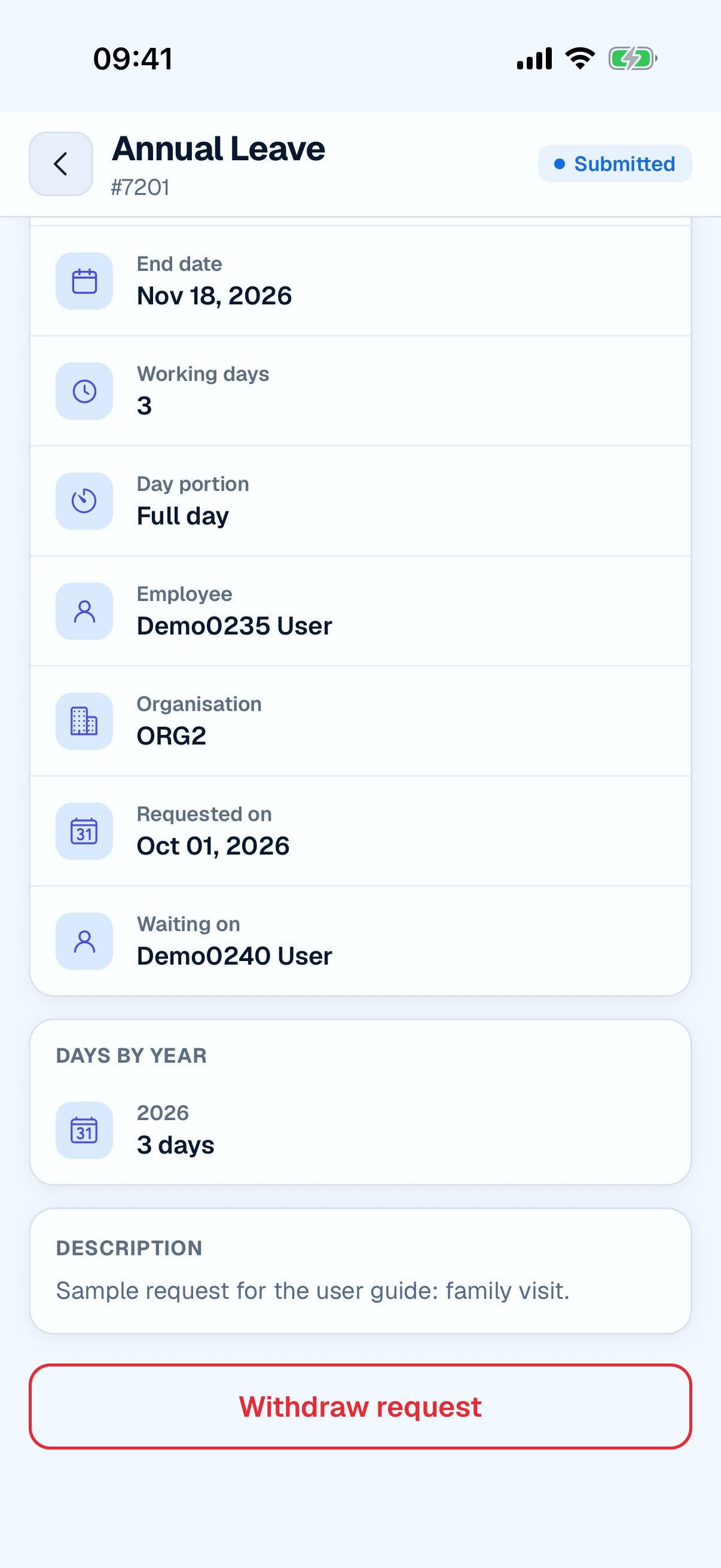
To see your requests, tap Records, then Leaves. Tap a request and then Withdraw request to cancel it.
On the phone you cannot ask for leave on past dates, and there is no balance overview. Use the browser for those.