Notifications
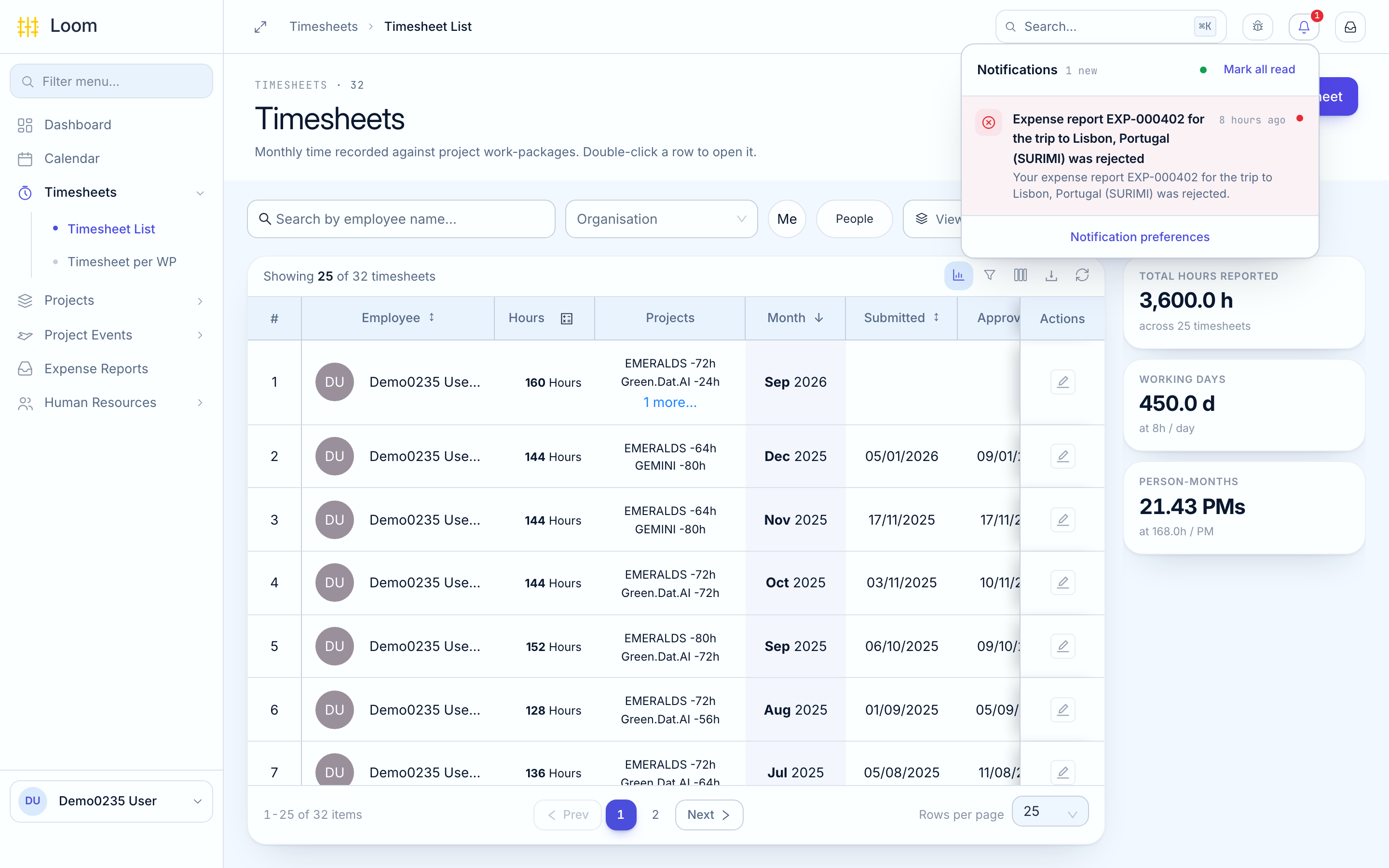
Loom tells you when something needs your attention, for example when your leave is approved or an expense report is sent back.
Reading your notifications
Click the bell at the top right. A number on it shows how many are new.
- Click a notification to open the leave request, report or trip it is about.
- Click Mark all read to clear the number.
What Loom tells you about
| When | How |
|---|---|
| Your leave is approved or rejected | Notification, email and phone |
| Your leave request moves to another approver or to HR | Notification and email |
| Your expense report is approved, rejected or paid | Notification, email and phone |
| A decision on your trip | Email, to the person who created the trip |
Loom does not notify you when a timesheet is approved or rejected. Check its status in Timesheets.
Choosing how you are told
- Click the bell, then Notification preferences.
- For each kind of notification, switch each channel on or off: In-app, Email, Push (your phone) and Slack.
- Click Save changes.
Notifications marked Required cannot be switched off.
Send test notification checks that notifications reach you.
On your phone
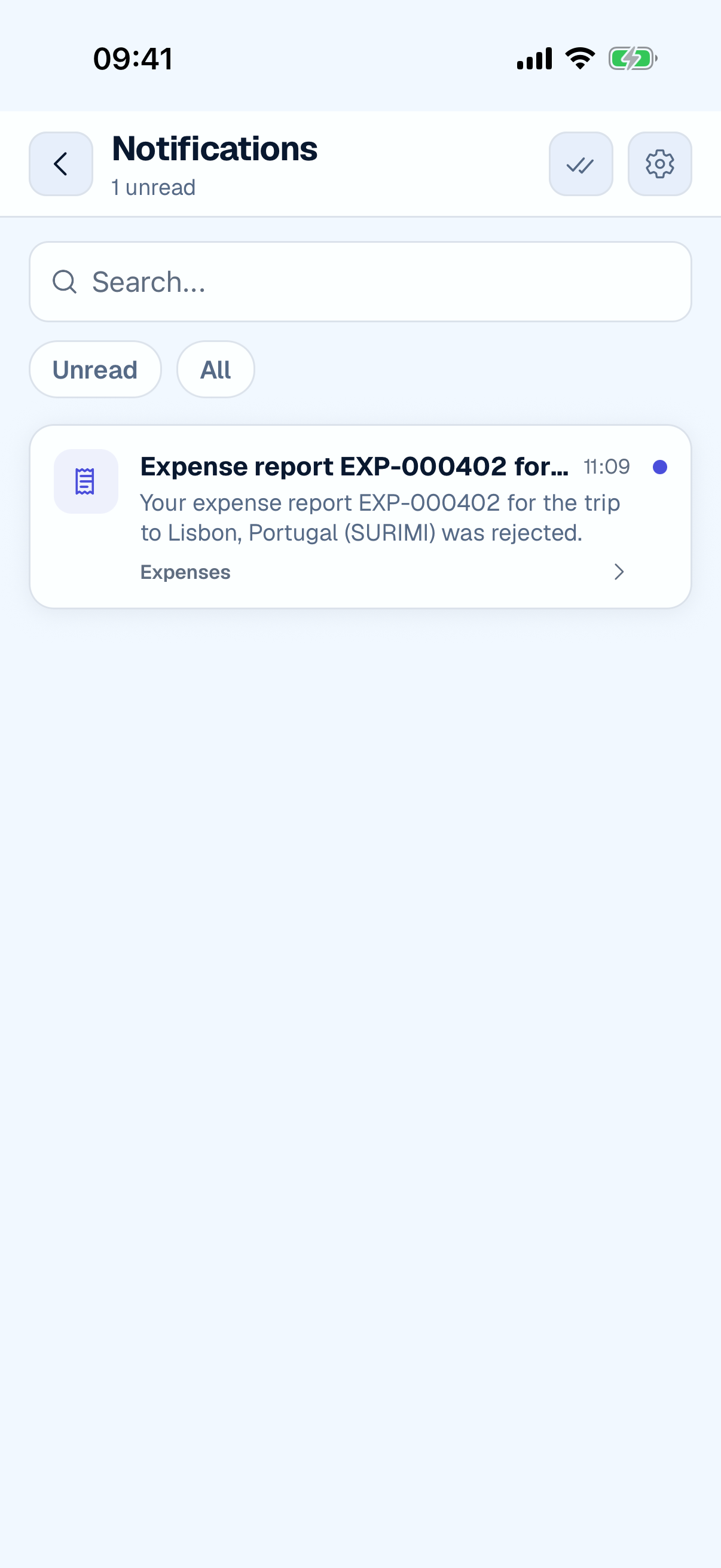
Tap the bell at the top of the Home tab. To choose what reaches your phone, tap your initials at the top right, then Settings › Notifications.
The first time you sign in on your phone, it asks whether Loom may send you notifications. Choose Allow if you want them.