The phone app
The EU Loom app for iPhone and Android covers your everyday tasks: adding expenses with photos of receipts, asking for leave, recording your hours and reading notifications.
Signing in
- Open the app. It is called EULoom on your phone.
- Type your Organization name and tap Continue. Your administrator tells you what to type.
- Type your Username and Password and tap Sign In. Or tap Sign in with Microsoft if your organisation uses Microsoft 365.
- Your phone asks whether Loom may send you notifications. Choose Allow if you want them.
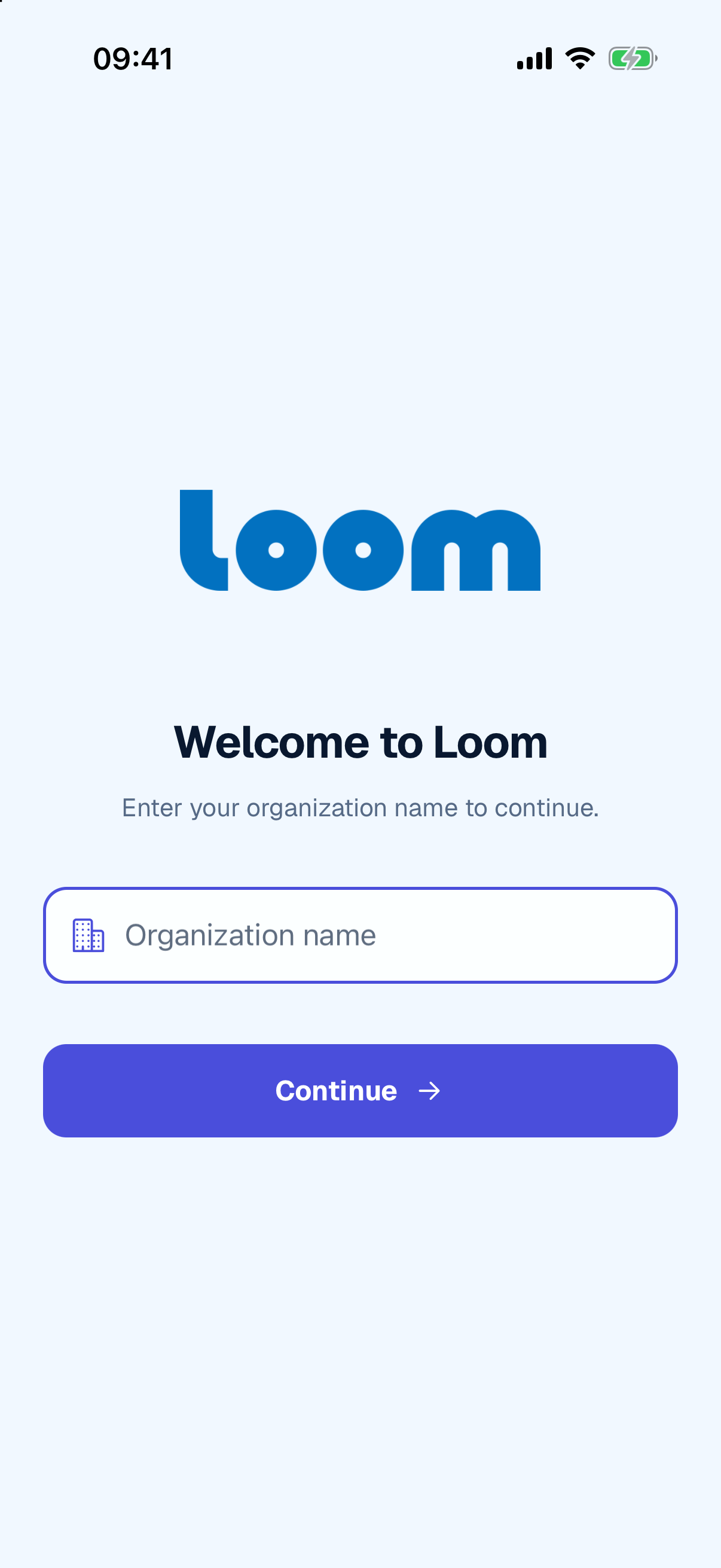
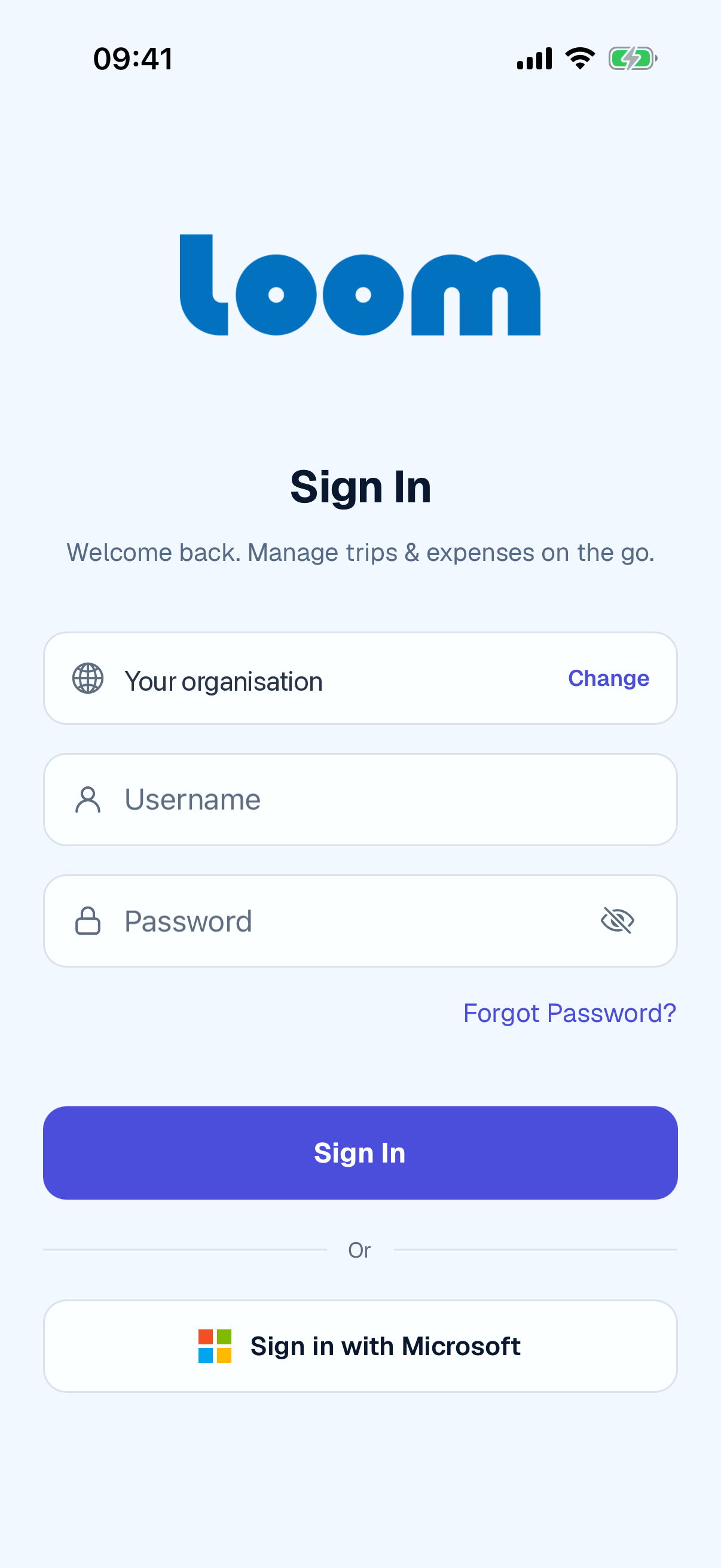
If you see Organization not found, check the name with your administrator.
If you forgot your password
- On the sign in screen, tap Forgot Password?.
- Type the email address your account uses and tap Send reset link.
- Open the email Reset your password and tap the link within one hour. It opens a Loom web page where you choose your new password.
- Go back to the app and sign in with the new password.
Face ID and fingerprint
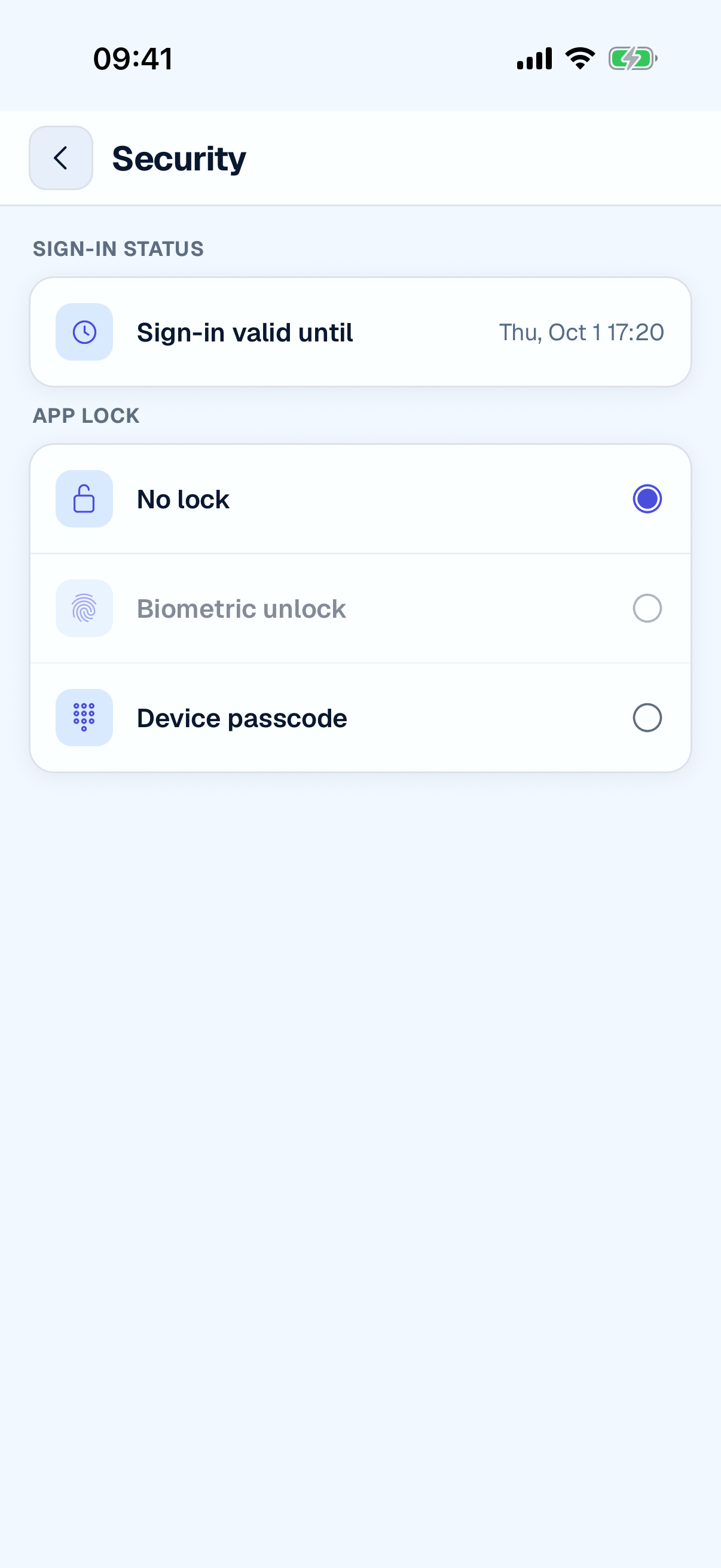
If your phone has Face ID or a fingerprint set up, Loom uses it to unlock the app. If you cancel the Face ID prompt when the app opens, Loom asks you to sign in again with your password.
To change this, tap your initials at the top right of Home, then Settings › Security, and choose No lock, Biometric unlock or Device passcode.
Around the app
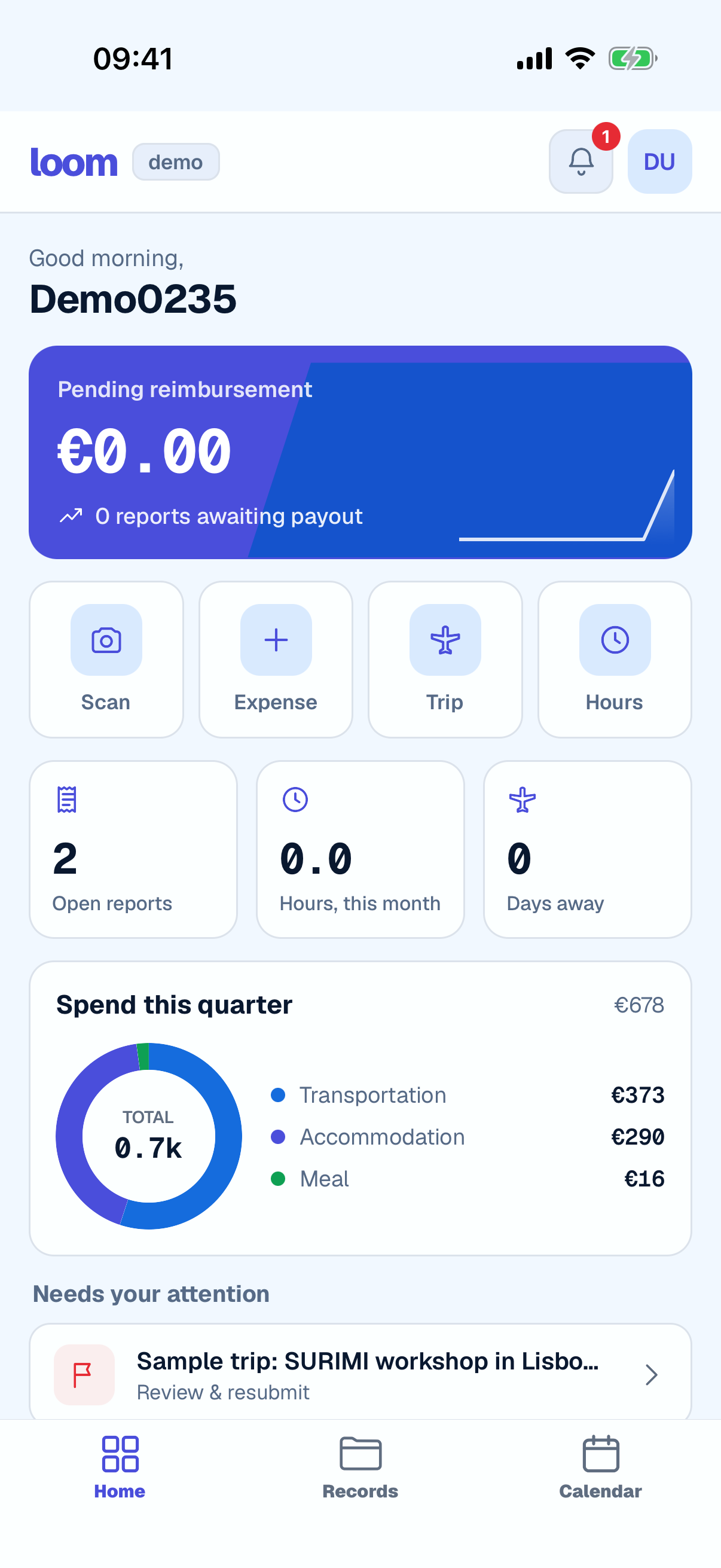
| Tab | What it is for |
|---|---|
| Home | Your summary, quick buttons for Scan, Expense, Trip and Hours, and things that need your attention |
| Records | Your Expenses, Trips, Leaves and Hours |
| Calendar | Your leave, trips and hours by day. Tap + to ask for leave |
If you approve requests for others, you also see an Actions tab.
Settings
Tap your initials at the top right of Home, then Settings:
- Language: English or Ελληνικά.
- Appearance: System, Light or Dark.
- Notifications: what reaches your phone.
- Security: Face ID, fingerprint or passcode.
- Personal Info: your name, email, organisation and roles.
Signing out
Tap your initials, then Settings, then Logout, and confirm.
What to do in the browser instead
The app does not do everything yet. Use the browser to:
- change your password
- create or change a trip
- correct a rejected expense report or timesheet
- ask for leave on past dates, or see an overview of your leave balance
- see public holidays