Finding your way around
The home page
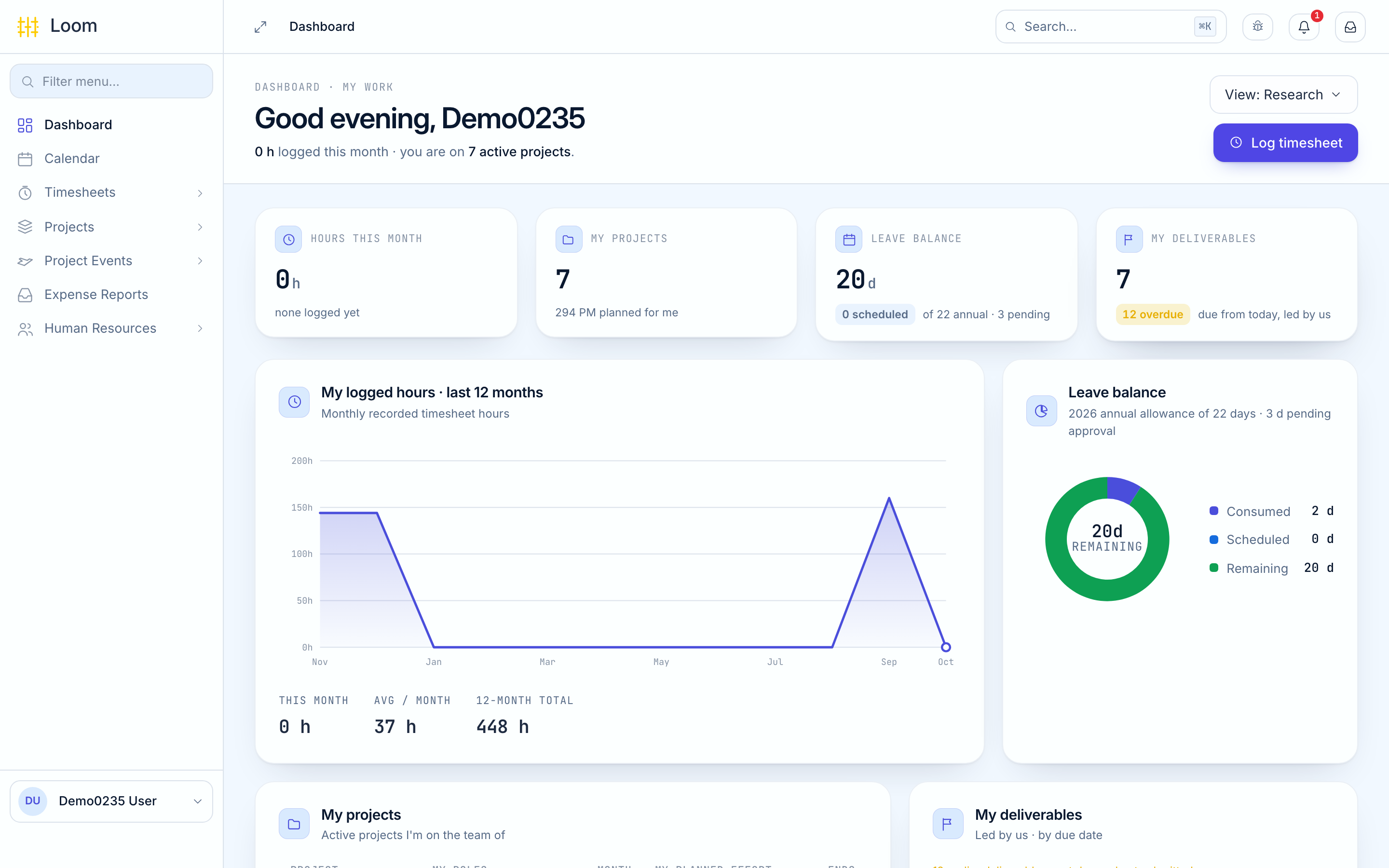
After you sign in, Loom opens your home page.
Choose the view that suits you
At the top right, View may offer Project, HR and Research. For your own hours, leave and projects, choose Research. Loom remembers your choice.
The Research view shows your month at a glance:
- Hours this month: the hours you have recorded so far.
- My projects: the projects you work on, with the effort planned for you.
- Leave balance: how many days of annual leave you have left.
- My deliverables: project deliverables due soon.
Below the tiles you see charts of your hours over the last twelve months and by project. The Log timesheet button at the top takes you straight to this month's timesheet.
The menu on the left
The menu lists the parts of Loom you can use. Click a group, such as Timesheets, to open it. The ones an employee uses most:
| Menu | What it is for |
|---|---|
| Dashboard | Your home page |
| Calendar | Your leave, meetings, trips and public holidays, and where you ask for leave |
| Timesheets | Your monthly hours |
| Projects | The projects you work on |
| Project Events › Meetings and Trips | Project meetings and travel to them |
| Expense Reports | Money you claim back |
| Human Resources › Leaves › My Leaves | All your leave requests |
Approval menus
You may also see Leave Approvals, Trip Approvals and an Inbox at the top. They are for people who approve requests. They stay empty unless someone has made you their approver.
Click the arrow icon at the top left to hide or show the menu.
The bar at the top
| Icon | What it does |
|---|---|
| Bug | Report an issue: tell the support team about a problem. See Getting help |
| Bell | Your notifications. A number shows how many are new. See Notifications |
Your name, bottom left
Click your name to open a small menu:
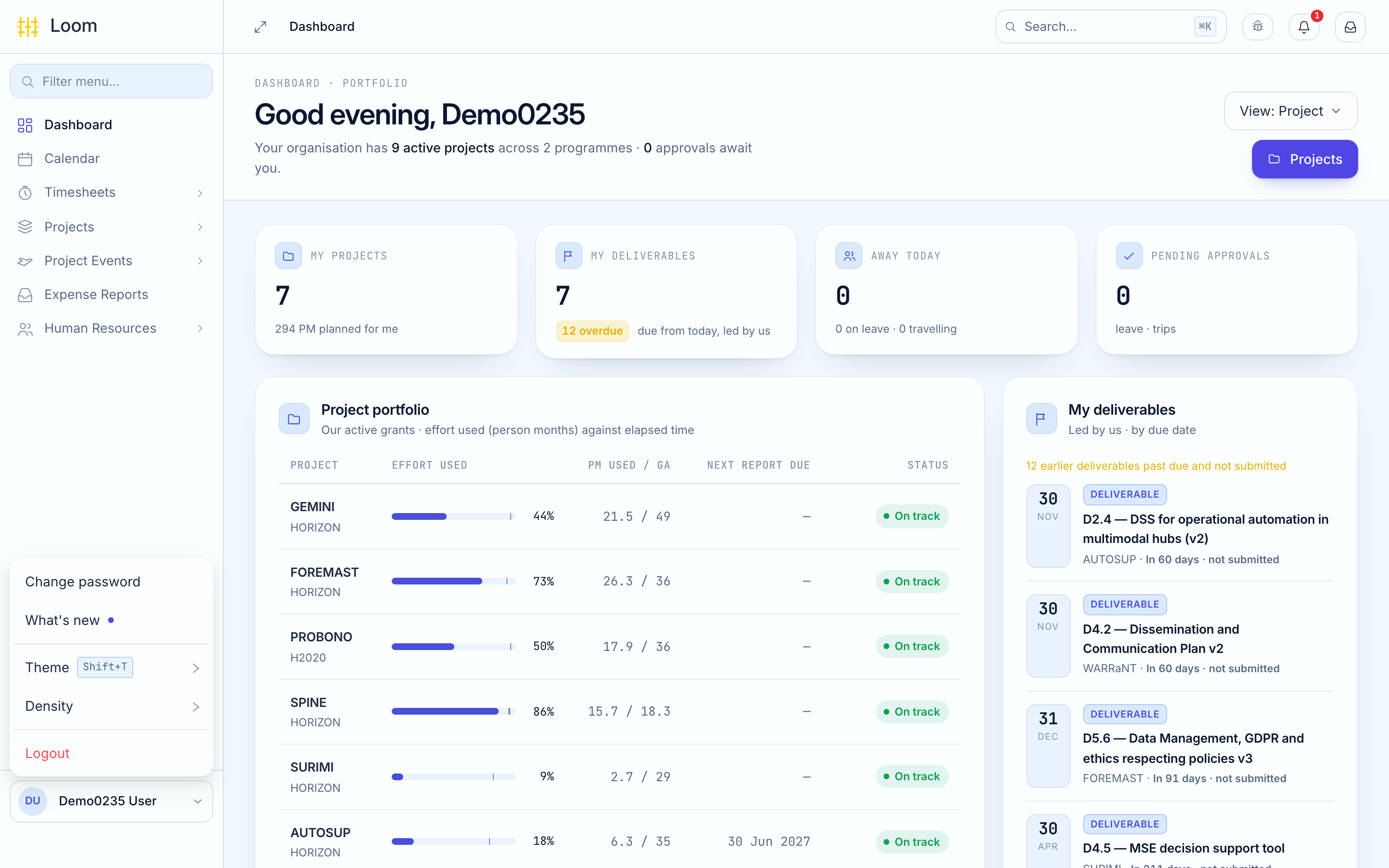
- Change password: see Getting started.
- What's new: recent changes to Loom.
- Theme: switch between Light and Dark.
- Density: Comfortable shows more space and hints; Compact fits more on the screen.
- Logout: sign out.
Lists
Most pages, such as your timesheets or leave, are lists. They work the same way everywhere:
- The tabs above the list, such as Draft or Approved, show only the items in that state.
- Double click a row to open it.
- Export downloads the list as a spreadsheet.
If you see "Page not found"
You followed a link to a page that has moved, or that your account cannot open. Click Return to dashboard.
If Loom says Loom has been updated, click Reload. A new version has been installed.